

Many tasks still arrive by email — as a request, a meeting, or a document to review. In your inbox they get lost among newsletters, CC threads, and “quick” messages. Constantly searching through Mail, when all you really want to know is: What do I need to get done today?
2Flow is a deliberately lean answer: emails become cards on a Kanban board — not another tool crammed with features, but a straightforward app built for exactly this flow: mail in, task created, keep working.

Features at a glance
Kanban: Multiple boards, columns, and cards with drag & drop
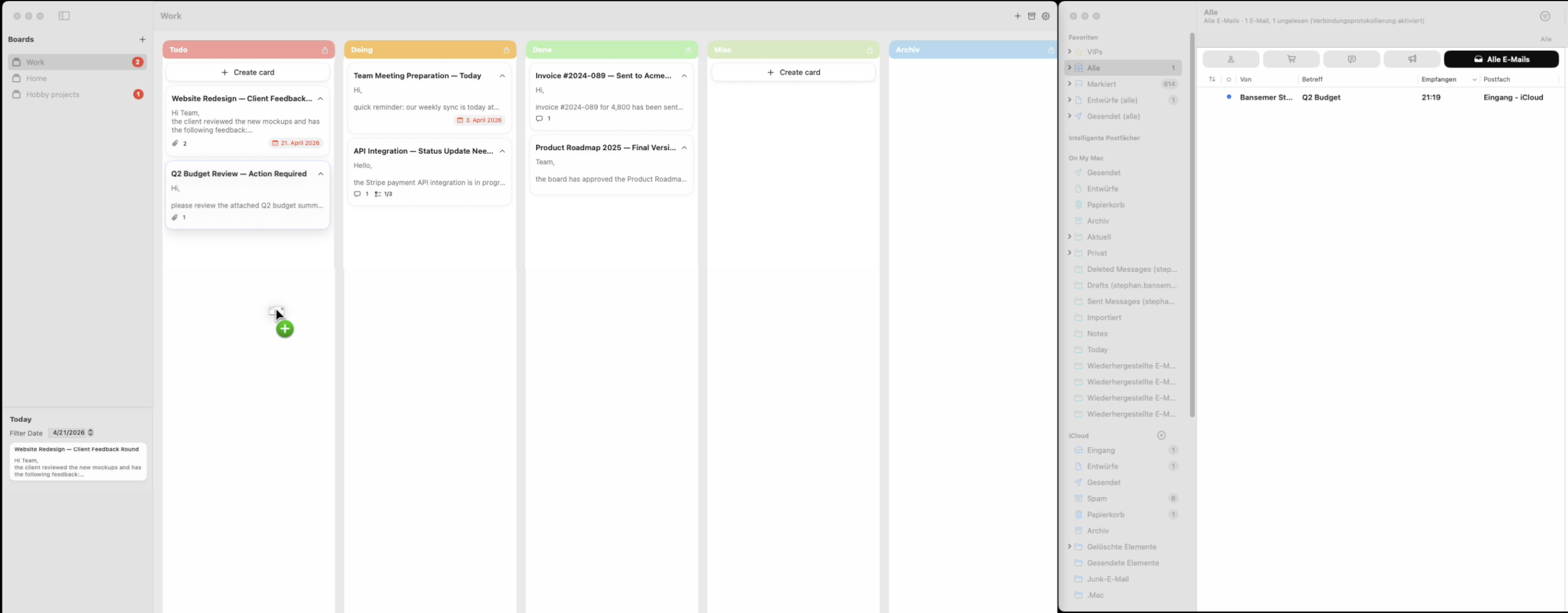
Email → card: Drag from Apple Mail and Microsoft Outlook (content depends on the source: subject, body, attachments, and more)
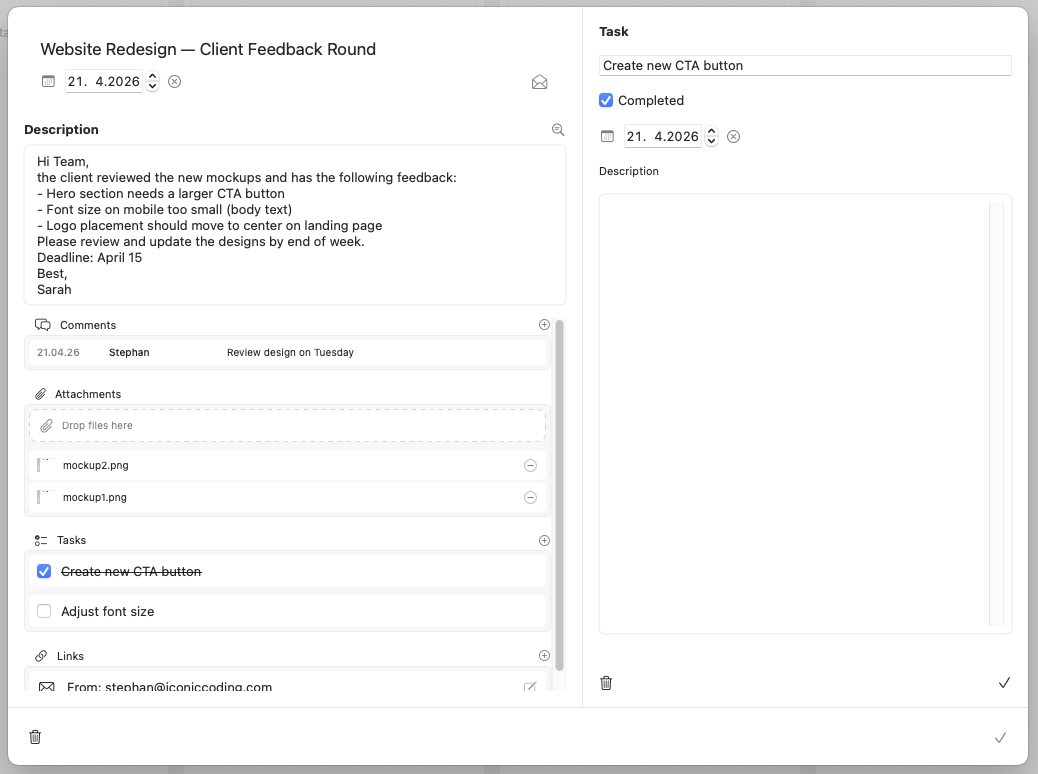
Card detail: Description, tasks, comments, links, file attachments, due date
Context from mail: Turn selected text into a task or quoted comment via right click
Open original message (when a link to the message can be stored)
Email client: Configurable — System default, Apple Mail, or Outlook (for “open original” and related actions)
Reply from the card: Draft with selectable building blocks, text template, plain text, real attachments where possible; for email links on the card: Reply and Reply All
Archive: Dedicated archive view with search, filters, and reactivation of cards; optional archive column with its own visibility rules on the main board
Menu bar icon with an at-a-glance view of due-today cards (can be turned off)
Badges: Counts next to the board name — per column you choose which cards count toward the badge
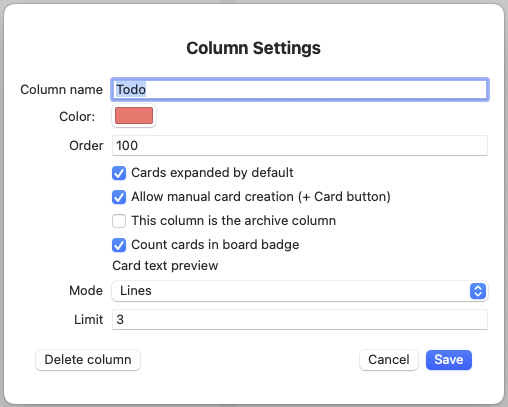
Fine-tune columns: Name, colour, order, cards expanded by default or not, manual card creation per column, card text preview (lines or characters with a limit)
Sorting: Option to show due cards first in columns
Workflow: Option to open the card right after a mail drop
Export: Column to-dos as a text file; export attachments from the card
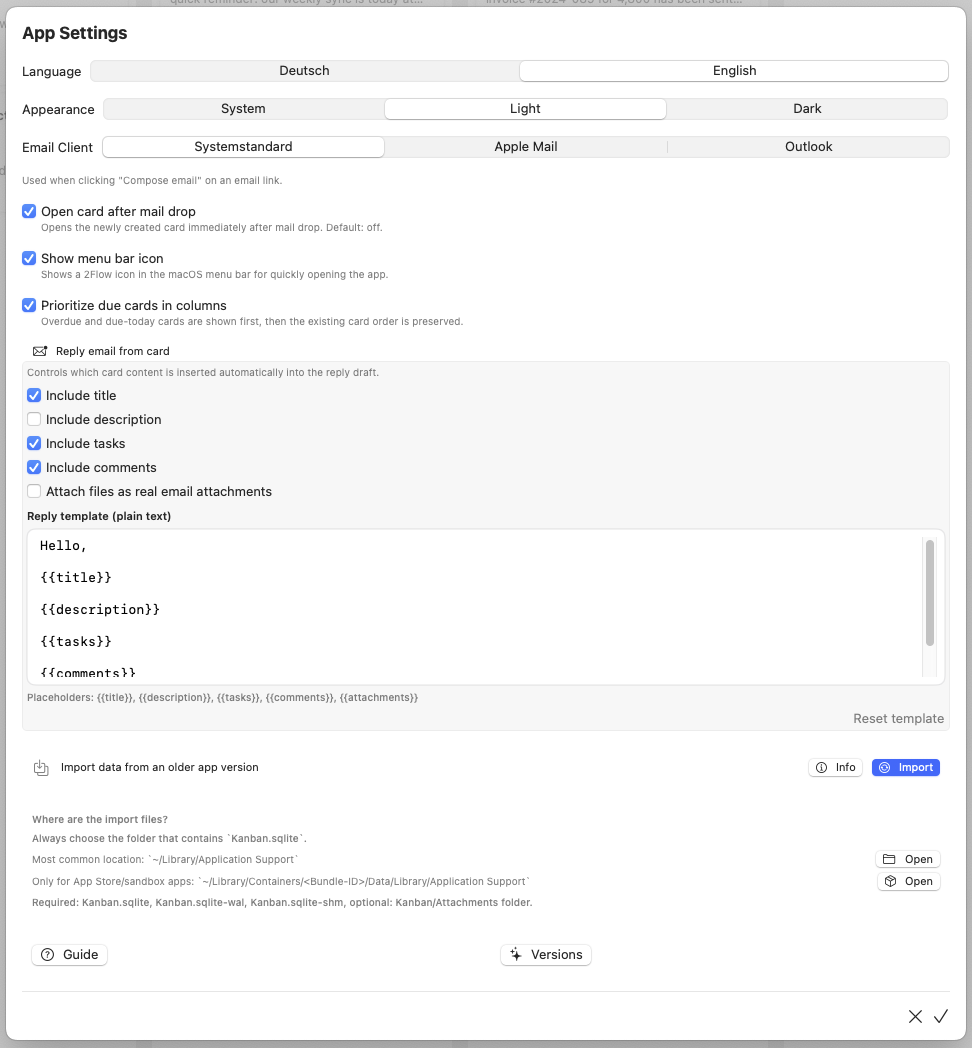
Appearance: Light, Dark, or System
Languages: German and English
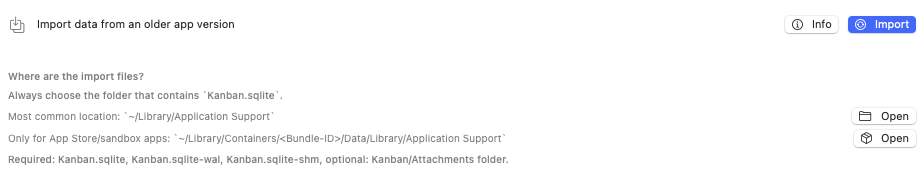
Data: Local on your Mac; import of an existing Kanban.sqlite with guidance and quick access to common folders (including the App Store sandbox container)
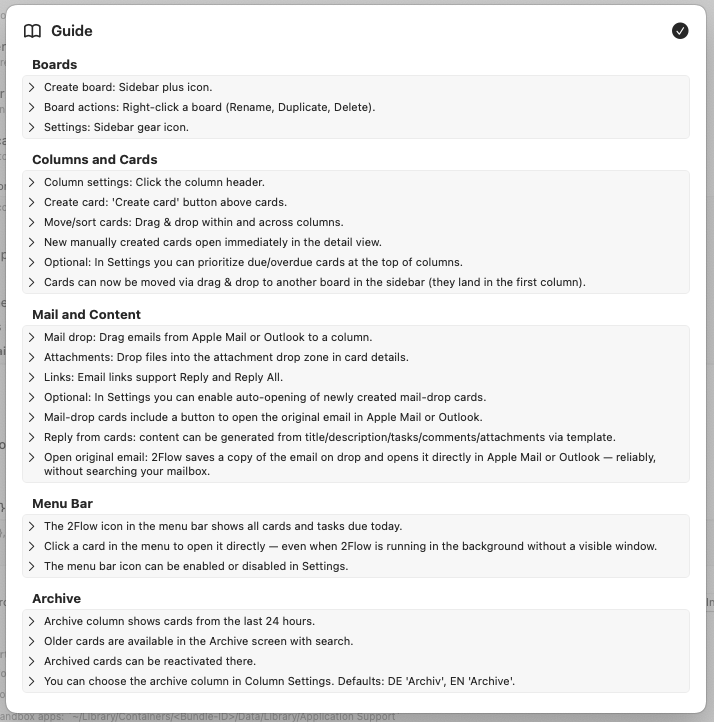
In-app help: Short guide “Features and how to use them”, “What’s New”, and the import guide
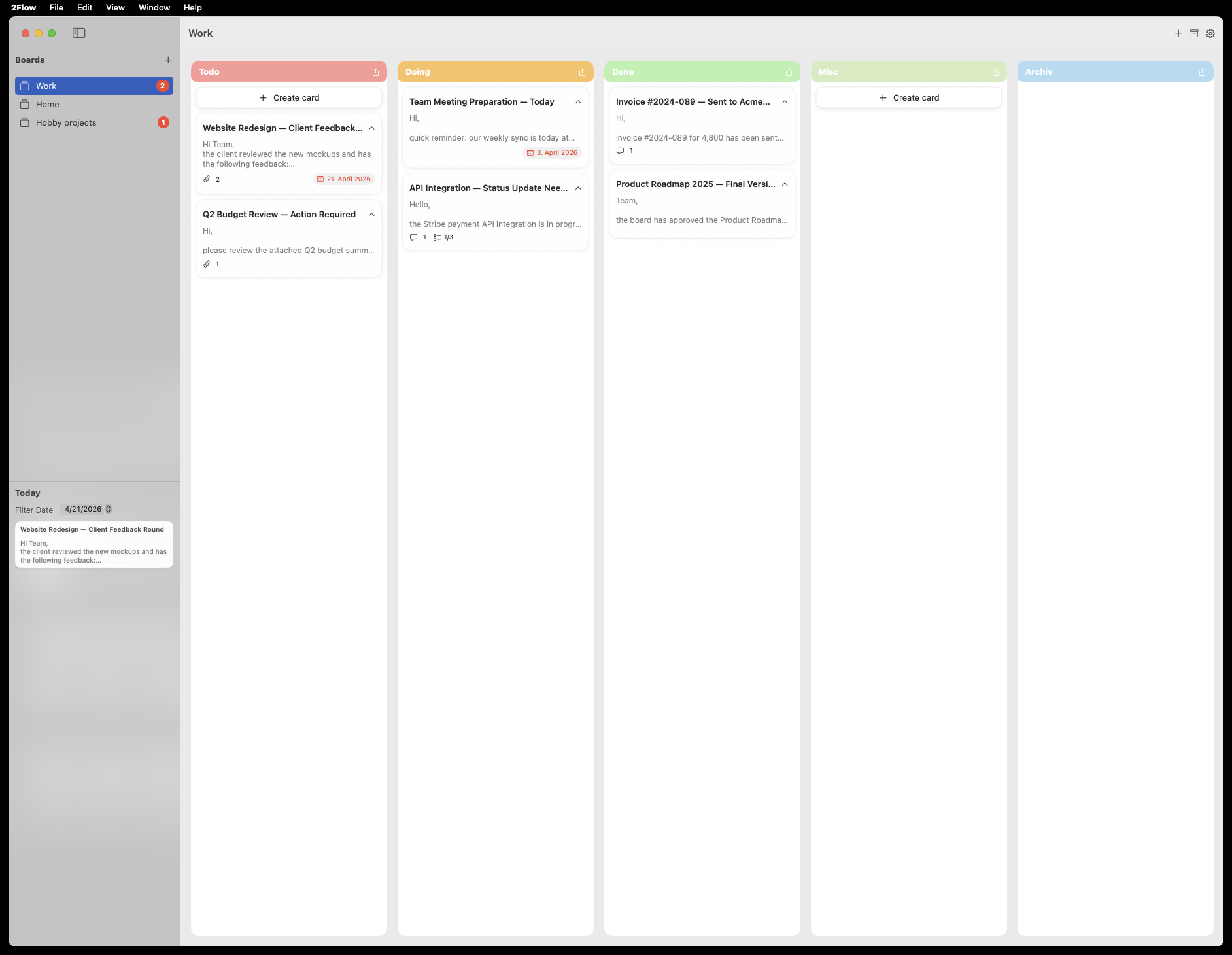
Feature walkthrough
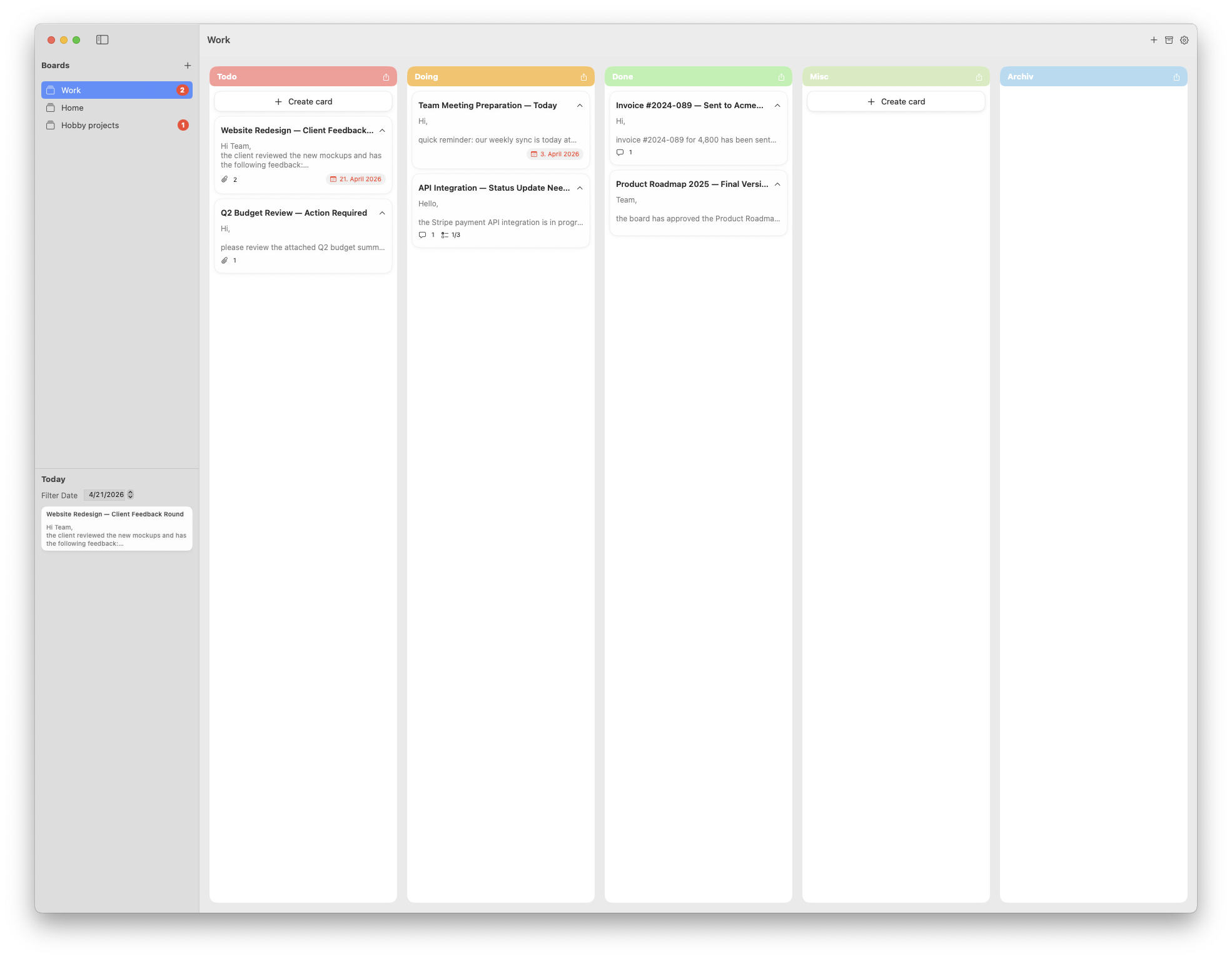
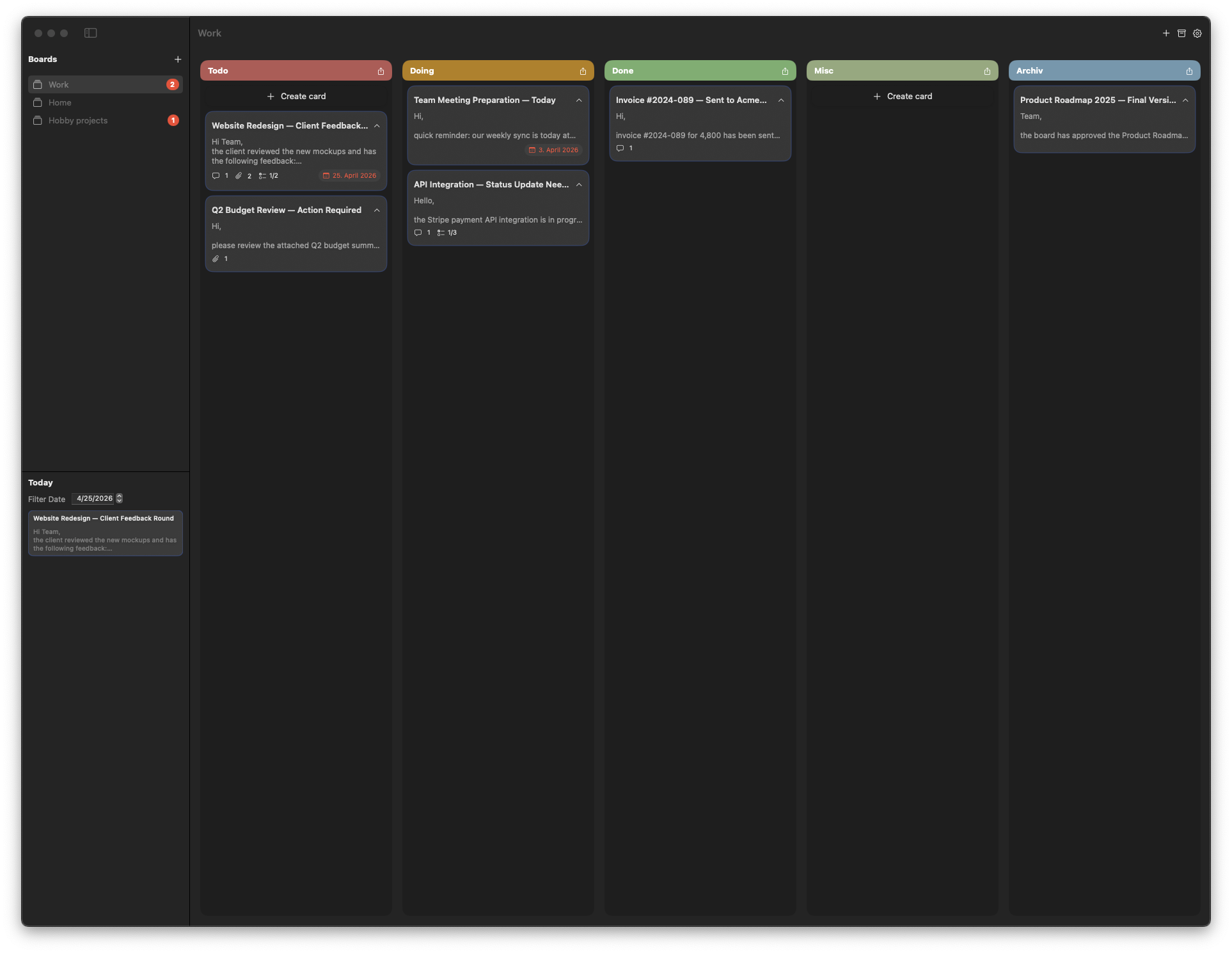
Kanban: boards, columns, cards
You work with boards (e.g. per project or topic). Each board has columns that match your process — classically Todo → Doing → Done, or your own. Cards are the work items; you move them with drag & drop between columns. You add new columns with the plus control in the board view, then fine-tune them in column settings.
Email becomes a card (Apple Mail & Outlook)
The core idea: you drag an email from Apple Mail or Microsoft Outlook onto a column. That creates a card with the important content — typically subject, body, and, where handoff from macOS and the mail app allows, attachments. A thread becomes a manageable task without copy-and-paste.
Card detail: structure instead of an unreadable thread
In the card detail view you continue the work:
- Description (imported mail text or your own notes)
- Tasks with checkboxes
- Comments for context and decisions
- Links (including Reply / Reply All where shown as an email link)
- File attachments (including export of individual files)
- Due date
Selected text in the description can be turned into a new task or a quoted comment with a right click — handy when only part of the mail should be a to-do.
Open the original message again
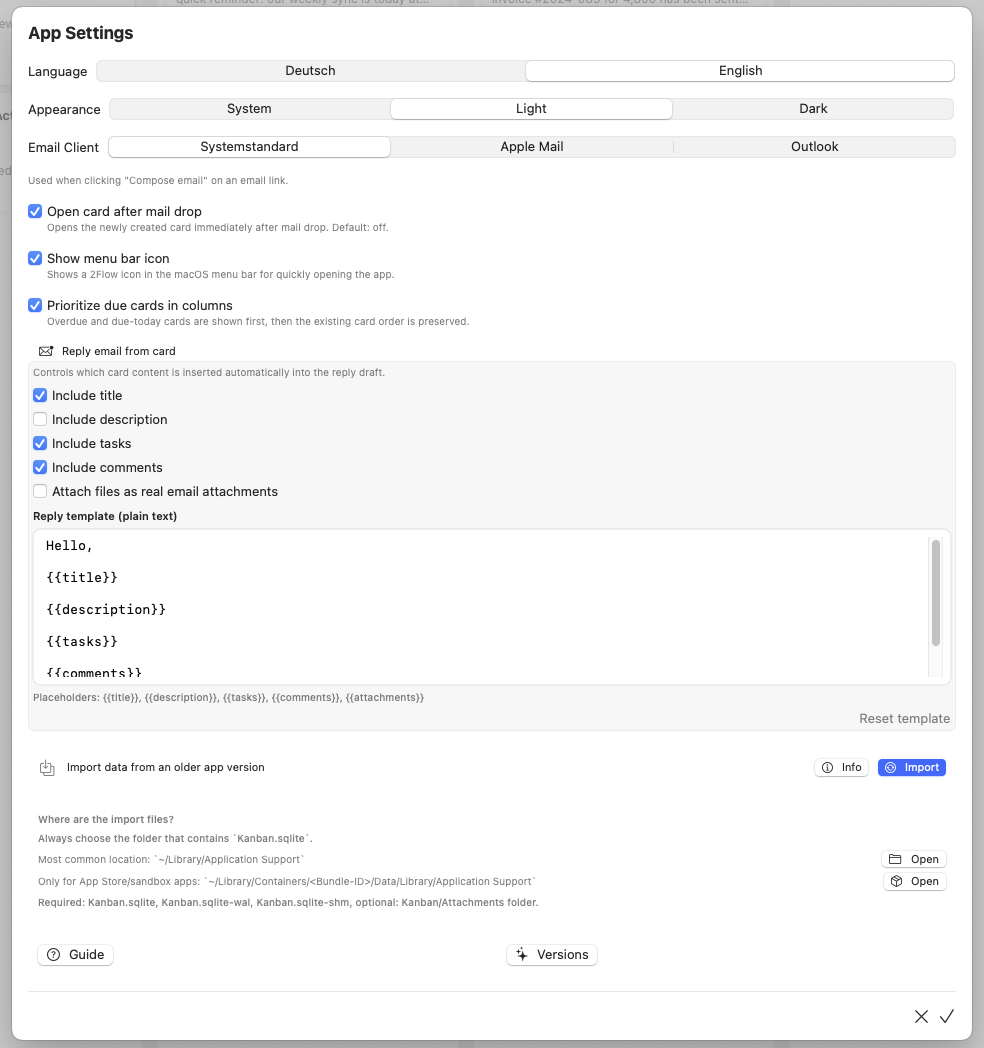
If a link to the original message can be stored on import, you jump back to Mail or Outlook in one click — full context, no hunting. In Settings you choose which email client is used for these actions: System default, Apple Mail, or Outlook.

Reply email from the card
You can build a reply draft from the card. In Settings you pick which blocks to include (title, description, tasks, comments, attachments) and optionally edit a text template. The draft is plain text and editable in the mail app; real attachments are passed through where the system and your setup allow.
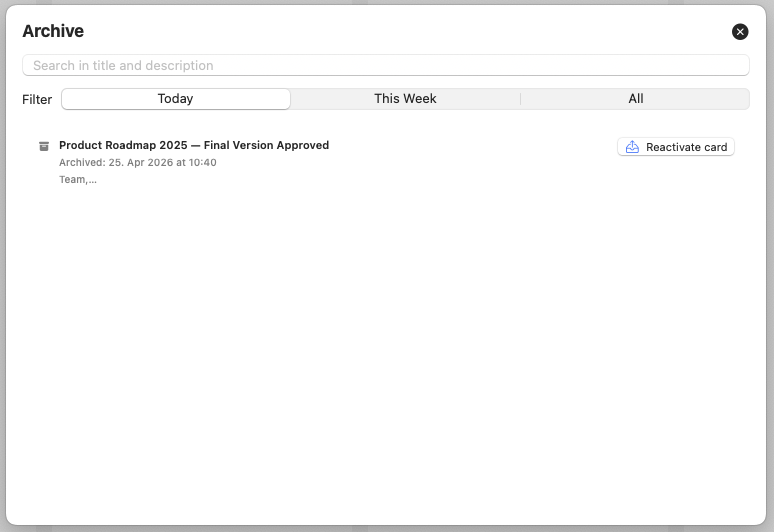
Archive: keep what’s done without cluttering the board
You can move finished work to the archive. The archive view offers search and filters; you can reactivate cards when needed. Alternatively, a column can be set as the archive column — the app explains visibility on the main board in the column settings (see the help text there).
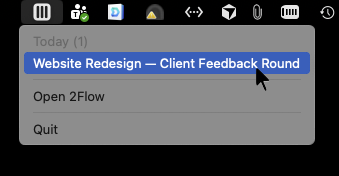
Menu bar icon and today’s focus
2Flow can show an icon in the menu bar for a quick look at due-today cards, even when the main window isn’t in front. You can turn the icon off in Settings if you prefer the app only in the Dock.
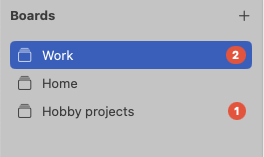
Badges: quick signal, quiet UI
A red badge next to the board name can show how many relevant cards you have. Per column you choose in column settings whether its cards count toward that number — so the badge matches your workflow (e.g. only “Todo”, not “Later”).
Column settings: colour, order, behaviour
Each column can be configured individually:
- Name, colour, order (lower numbers further left)
- Cards expanded by default or not
- Allow manual card creation (the + / create button) per column or not
- Archive column (only one per board)
- Include in board badge for this column
- Card text preview in the column: by lines or characters, with a limit — so long emails don’t break the board overview
Small everyday helpers
- Open card after mail drop: One less click when you want to add details right away.
- Due cards first in columns: Brings the urgent items to the top.
- Export column to-dos: Export tasks as a text file (e.g. for notes or sharing).
- Export attachments from the card: Save files when you need them elsewhere.
Language & appearance
The interface is available in German and English. Light, Dark, or follow System — whatever feels best for long work sessions.
Data, import, privacy
Your boards stay local on your Mac. There is no separate cloud upload of your content by 2Flow (see the privacy policy on the website).
When you switch Macs or restore a backup, the app helps you import a Kanban.sqlite with short instructions and buttons to open the usual Application Support and container locations.
Help in the app
From Settings you can open a short guide (“Features and how to use them”), “What’s New”, and the import guide — so you are not dependent on external docs when something comes up on the go.
Short summary
2Flow is not meant to be bloated with features — it has one clear job: turn emails into actionable tasks and carry them to completion on a simple Kanban board, with the tools you actually need.
On the Mac App Store:
https://apps.apple.com/app/id6761618411
(App ID: 6761618411)
For a German storefront page you can use: https://apps.apple.com/de/app/id6761618411